



Zoom Integration
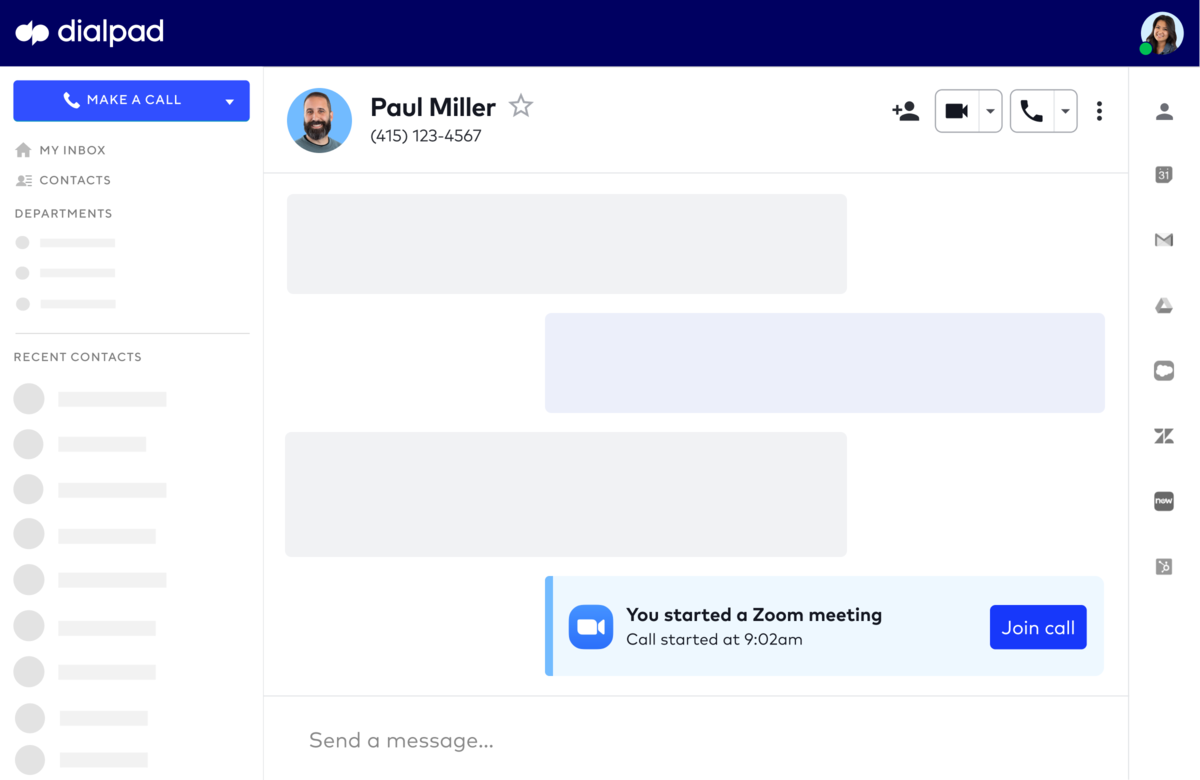
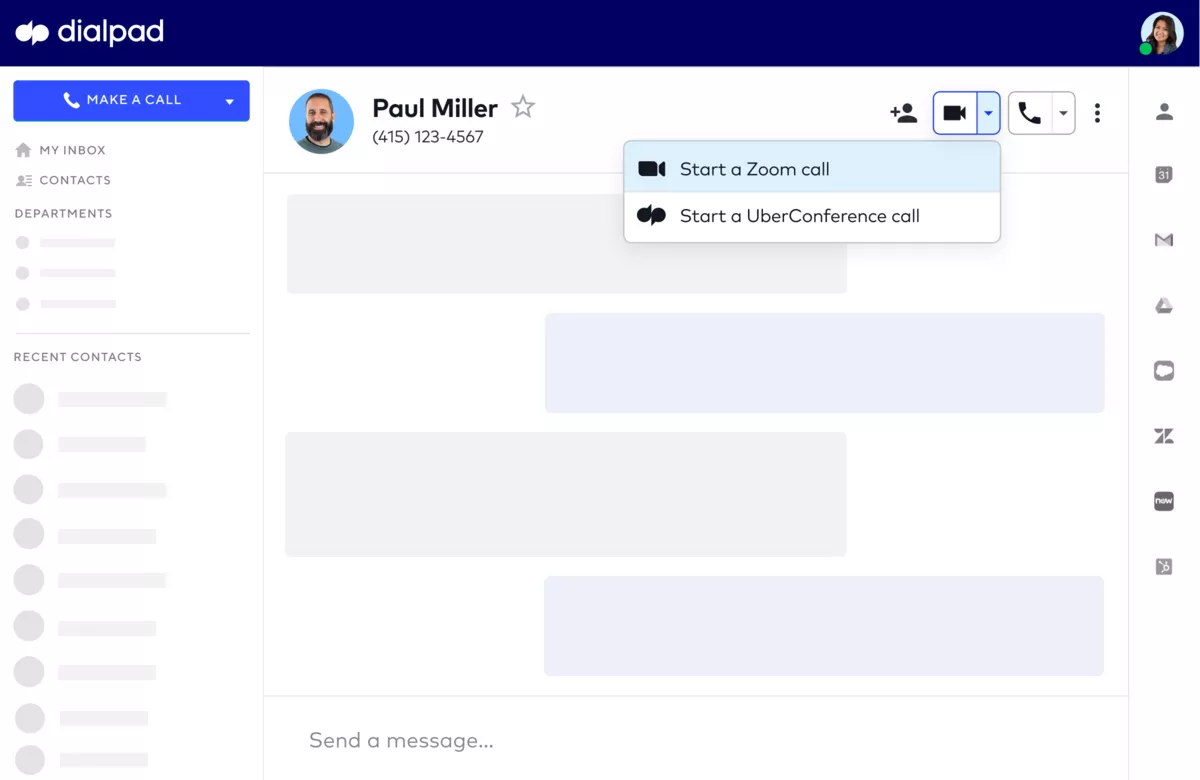
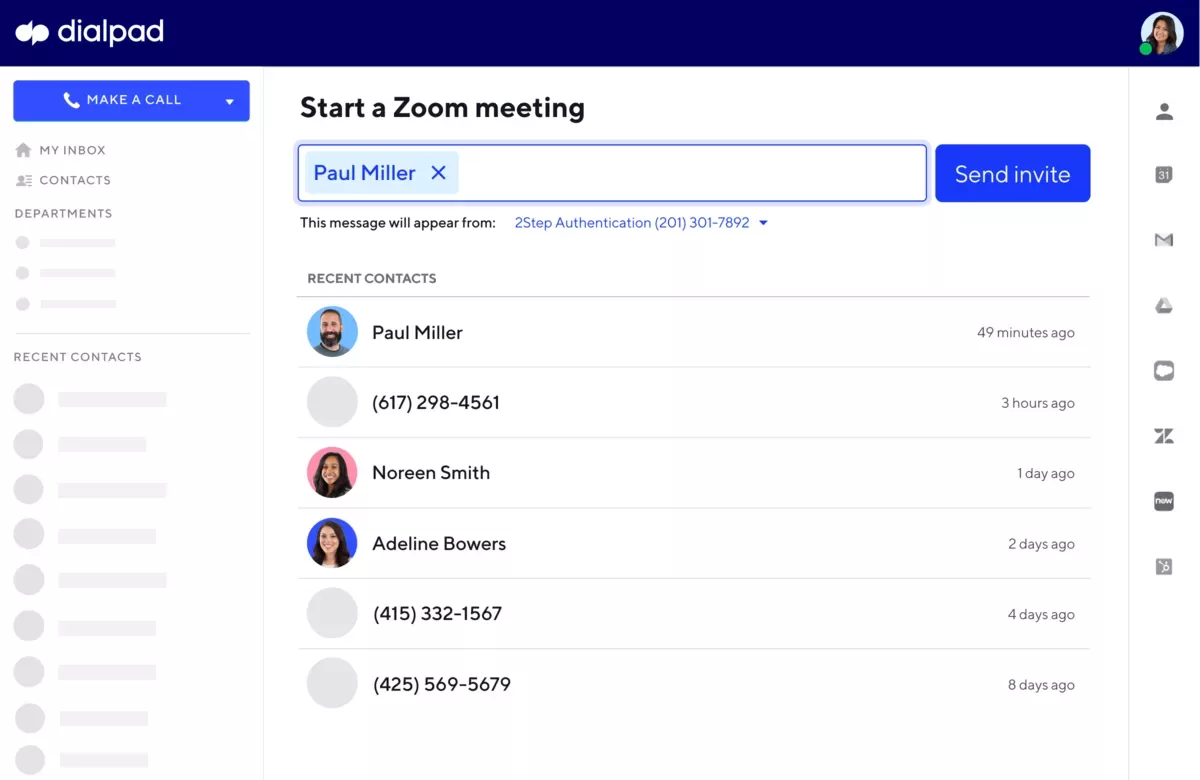
Bring teams together to get more done in a frictionless and secure video environment.
Media
How to Setup
Enable the Integration
Prerequisites
To enable, you need to have Company (to enable for your entire company) or Office (to enable for your office) Admin access. You also need to have Admin or owner access on Zoom. Note that individual users do not need administrative access to start meetings.
Setup Process
Navigate to Admin Settings > My Company > Integrations. Alternatively, to enable just for your office, navigate to Admin Settings > My Office > Integrations.
Next to Zoom select Connect from the drop-down menu.
Authenticate the connection between Zoom and Dialpad.
After successfully authenticating the integration, you will be redirected back to the Integration settings page.
Now that you've enabled the integration for your Office, the integration is ready to be used.
Zoom Integration
Bring teams together to get more done in a frictionless and secure video environment.
Media
How to Setup
Enable the Integration
Prerequisites
To enable, you need to have Company (to enable for your entire company) or Office (to enable for your office) Admin access. You also need to have Admin or owner access on Zoom. Note that individual users do not need administrative access to start meetings.
Setup Process
Navigate to Admin Settings > My Company > Integrations. Alternatively, to enable just for your office, navigate to Admin Settings > My Office > Integrations.
Next to Zoom select Connect from the drop-down menu.
Authenticate the connection between Zoom and Dialpad.
After successfully authenticating the integration, you will be redirected back to the Integration settings page.
Now that you've enabled the integration for your Office, the integration is ready to be used.